10 Reading/Reading-Related Apps Tiara Can’t Live Without
I am a technophile to my core, and this translates into everything I’m passionate about from music to gaming to reading. I thought I’d share my favorite reading and reading related apps. There are probably more than 10 reading apps that I can’t live without, but I’m sticking to the main 10 I use frequently. This list excludes gimmes such as the apps for Kindle, Nook and Kobo because most people already know about those.
My reading format of choice is .epub for books outside of what I buy for Kindle and Nook. I convert any files that I may receive that are not in .epub format using
Calibre. I even convert some of my Kindle books I bought to .epub to read in other readers. I am a big fan of that format. I know some of these applications will work with .pdf, but if you’re a fan of the .mobi format, I don’t think any of the reading apps here will be of use to you.
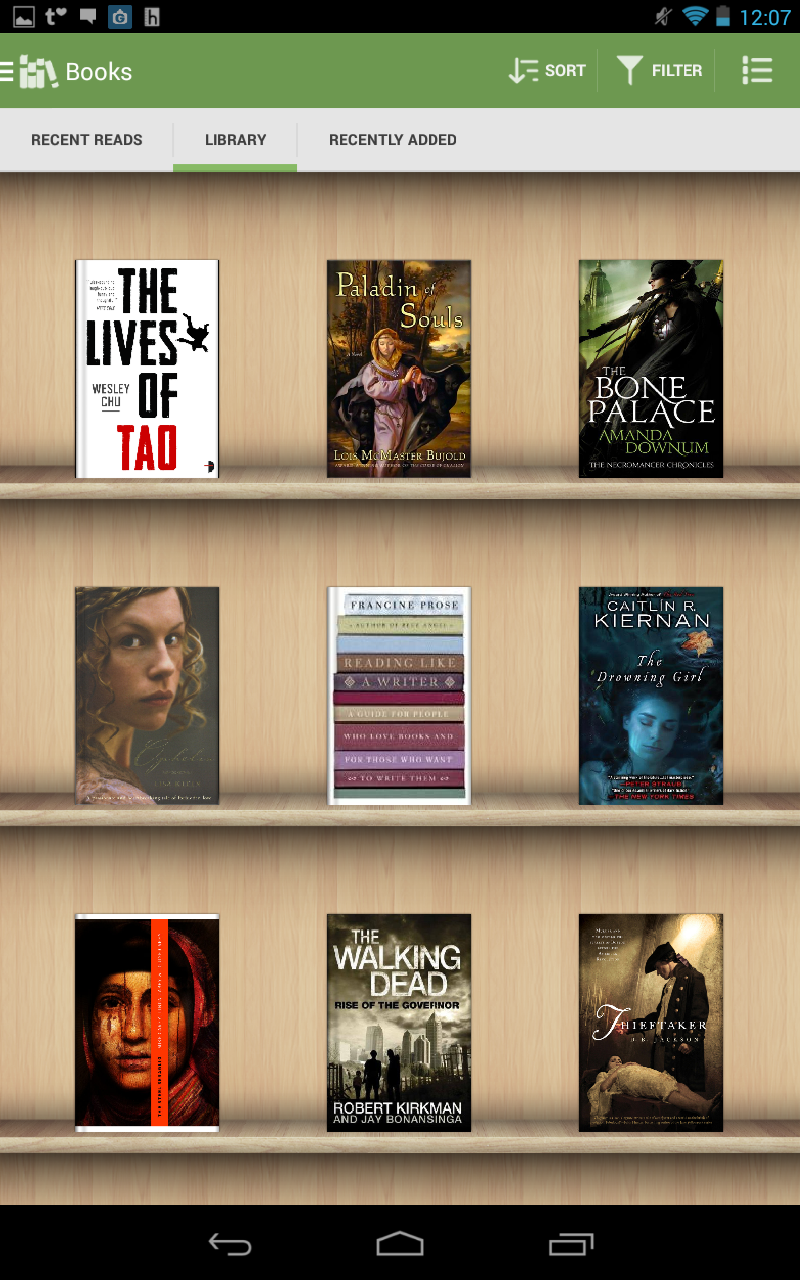
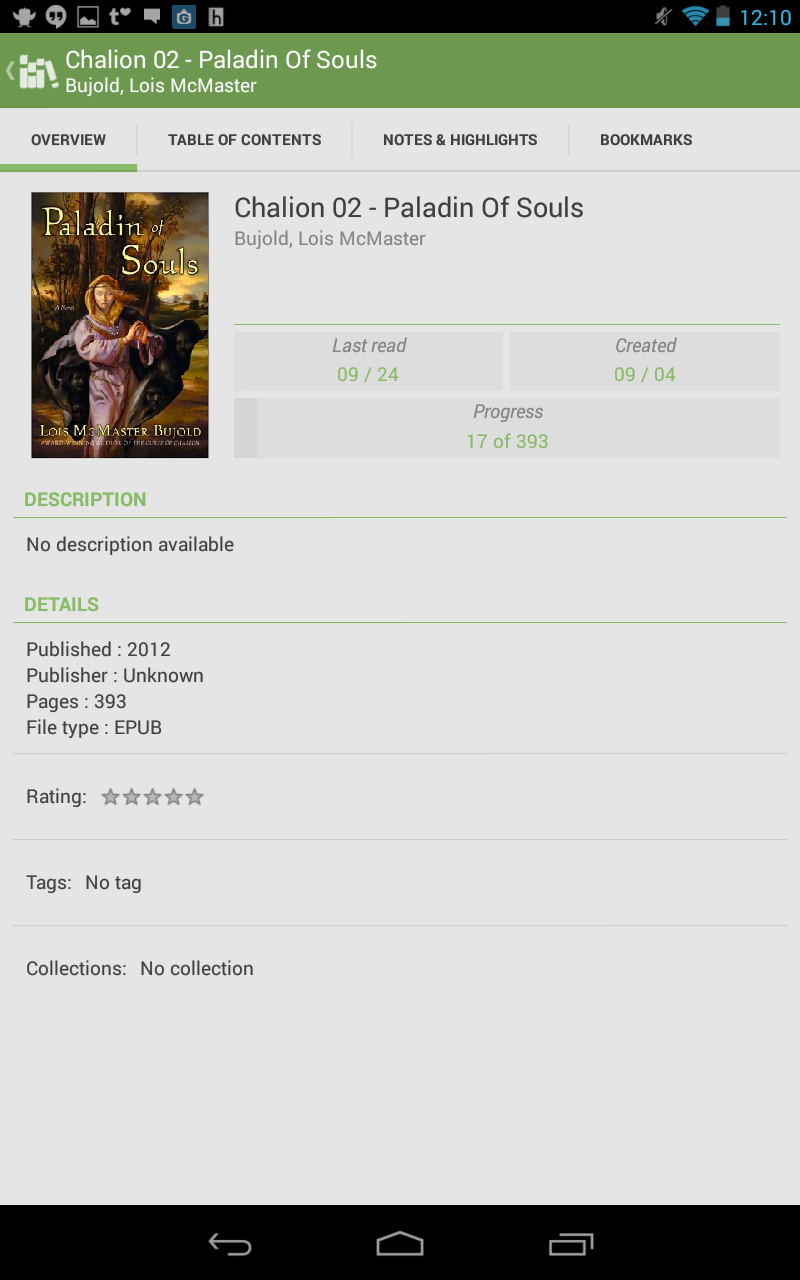
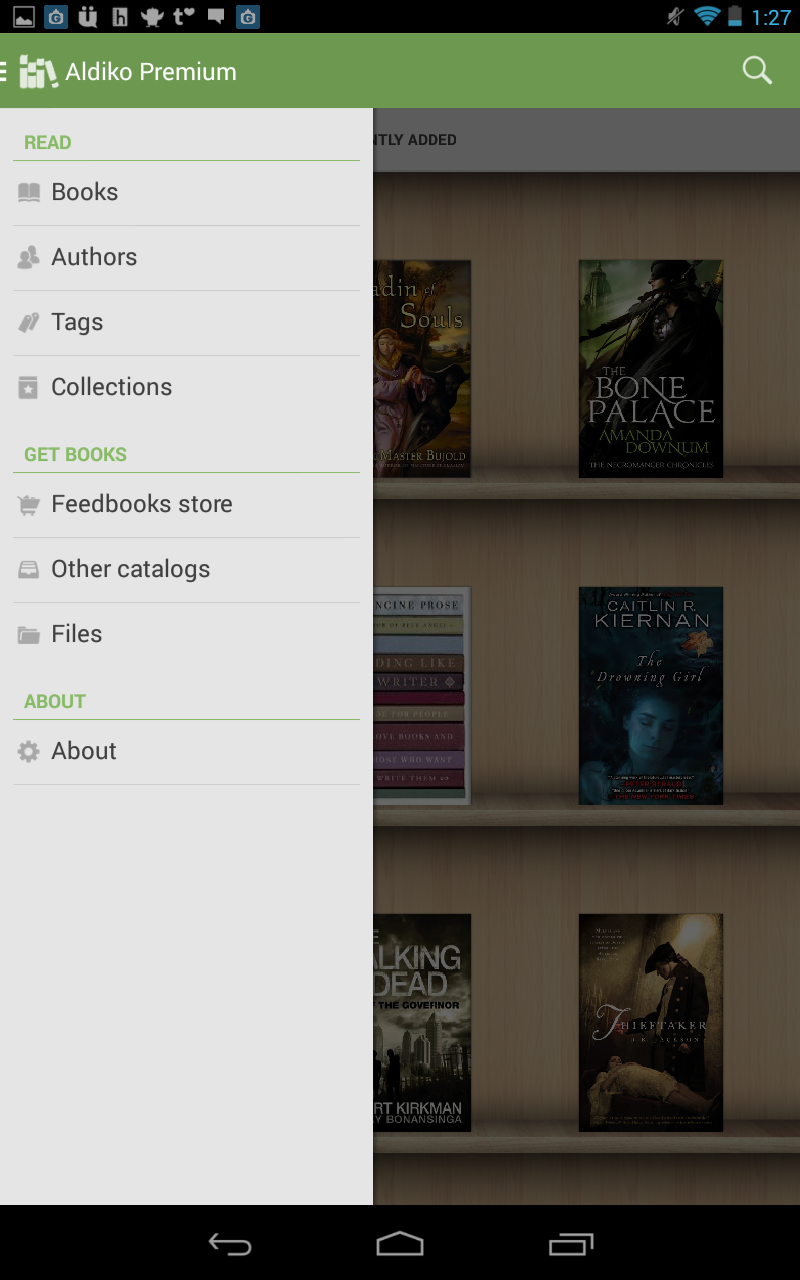
Aldiko (Android) – Aldiko is my one reading app to rule them all. I’ve been using this app for a few years now. It started out as just an additional reading app on my rooted Nook Color for reading DRM-free books, but soon became a staple on all my Android devices. Aldiko supports .epub and .pdf. You can also read Adobe DRM-encrypted books on it. You can adjust your background color, brightness, change font face and size, change margins and text alignment, and search through your books among other things. Aldiko features the ability to tag books and add them to different collections, as well.There is an in-app store included that supports Feedbooks, Smashwords, and O’Reilly Ebooks with the option to add other online catalogs via URL. While there is a free version of the app, I use the premium version which adds highlights, notes, and widget options. Not a whole lot of additions, but I really just wanted to support a great reading app and felt it was worth the $2.99 .
[Download: Google Play]
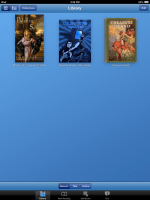
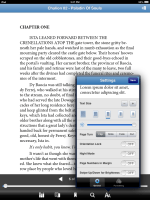
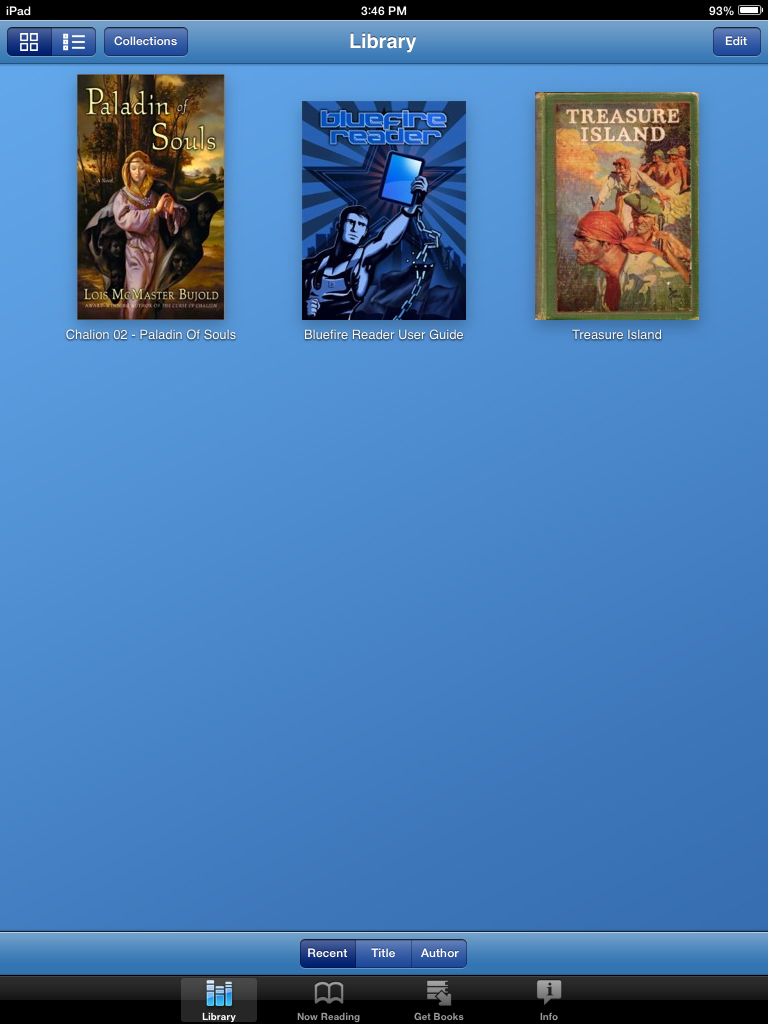
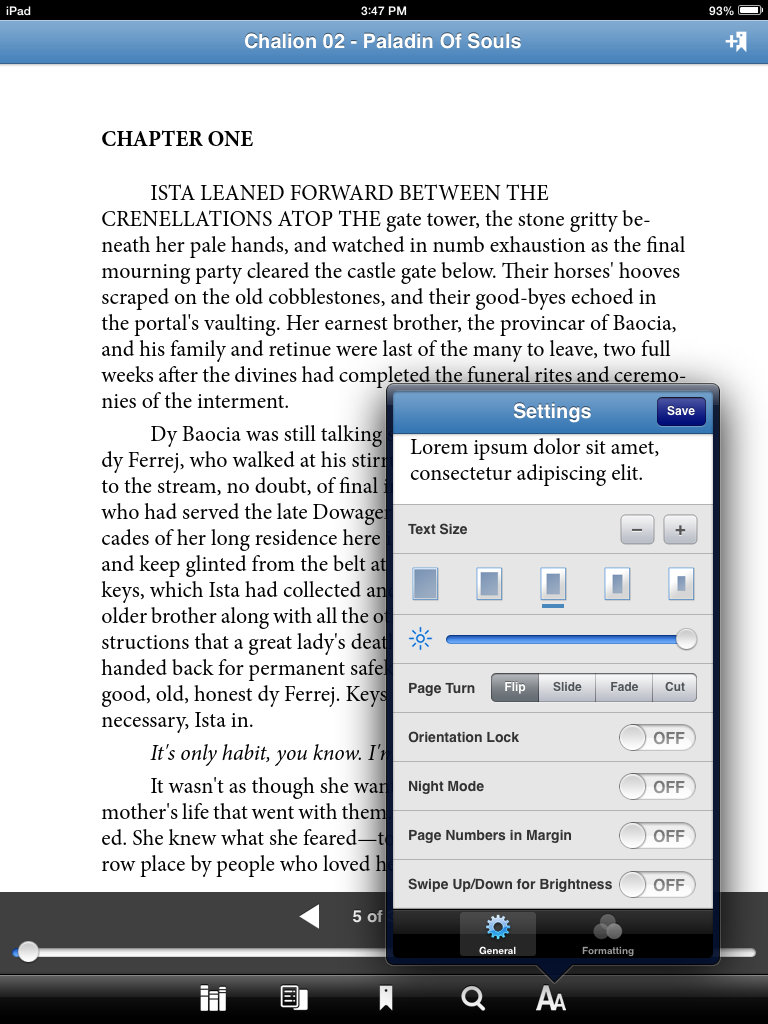
Bluefire (Android/iOS) – This is my iOS reading app of choice, but it’s also available for Android. I had some troubles with iBooks not wanting to recognize some of my .epubs, so I looked for other options. Bluefire came highly recommended by a friend. Bluefire features the typical options such as searching books, highlighting, and notes. You can change the text size and margins, switch to night mode, and lock the screen orientation while in app. It will also define highlighted words using Google search, which is a little annoyance of mine (and one that holds true of Aldiko as well). I prefer in-app dictionaries because, even though I am connected to wifi 90% of the time thanks to my phone being able to function as a hotspot, there are times when I’m not whether that’s by my choice or not.
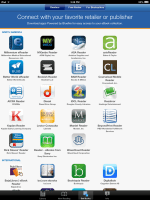
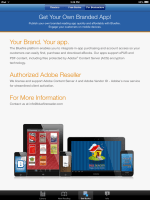
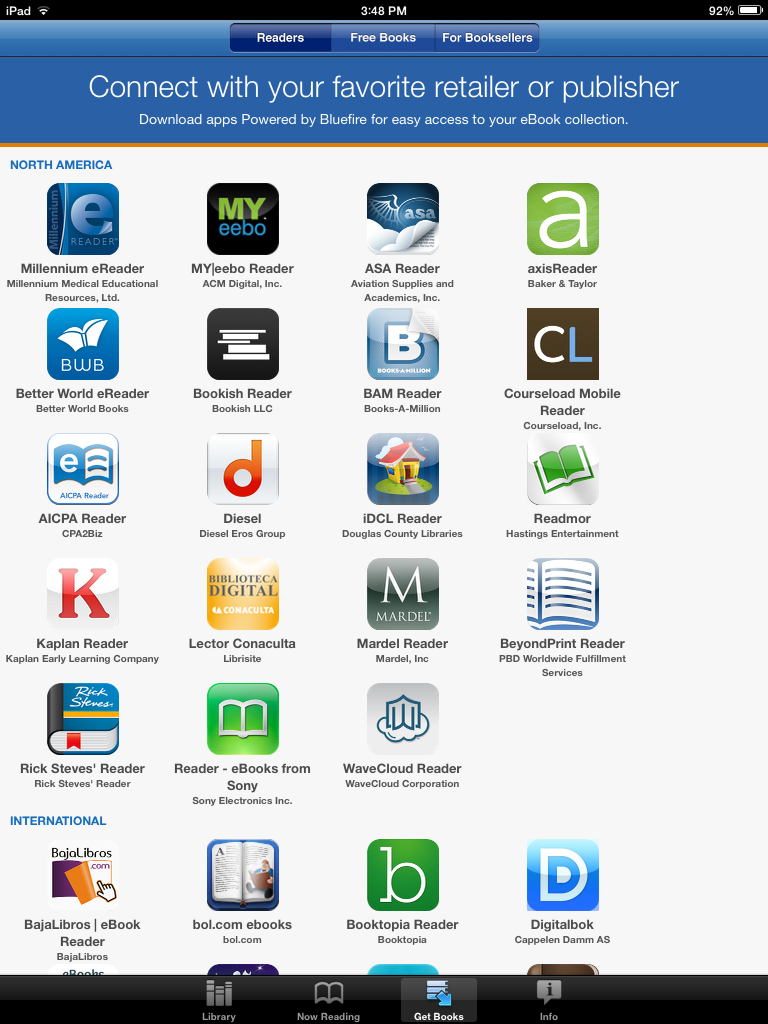
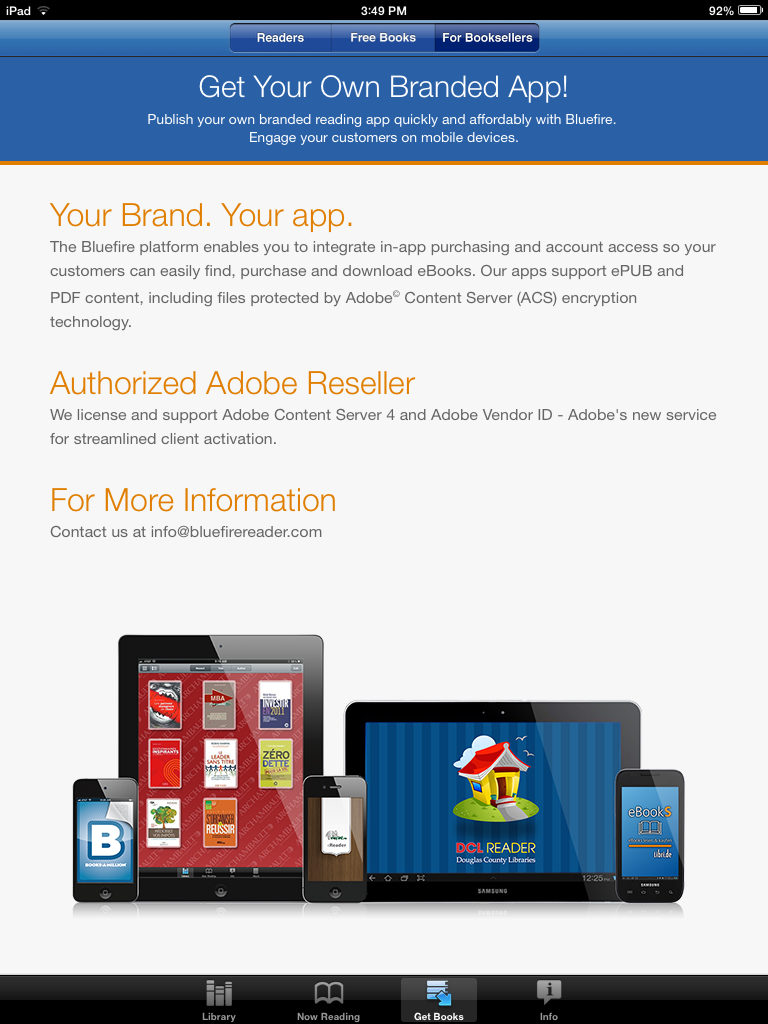
Bluefire can also read Adobe DRM-encrypted books and can sort library books you’ve checked out by expiration date. I tend to get Kindle loans from the library, so I’m not familiar with that option. Like Aldiko, Bluefire offers a few in-app catalog choices powered by Books-A-Million, Feedbooks, and Diesel. Bluefire also appears to reach out to content distributors who may want to have their own branded app to sell their books. [Download: iTunes | Google Play]
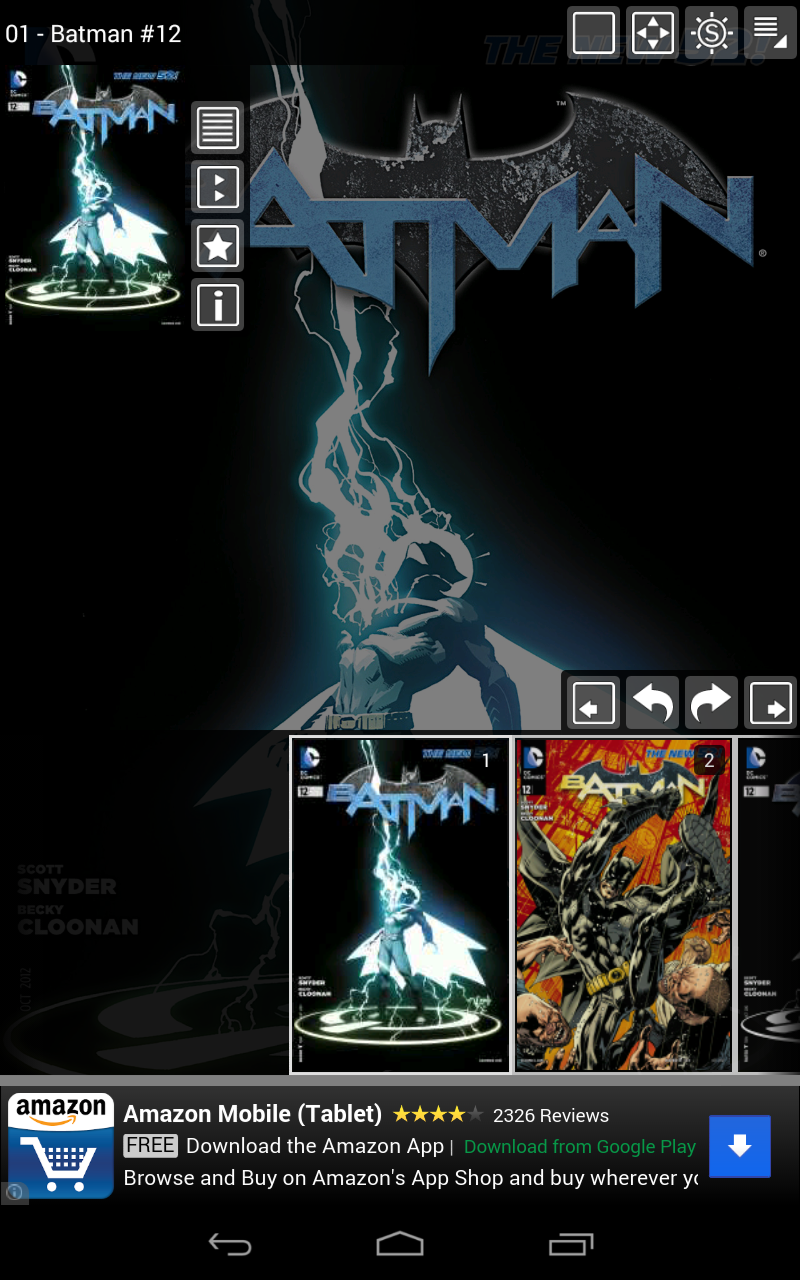
Comic Rack (Android) – First things first, if you don’t know this by now, I love comic books. I have always loved comic books. I will always love comic books. The end. I have actually been reading comic books on my PC for years even before it became fashionable to do so. Now, there are better options for reading comics on mobile devices such as tablets and phones with many comic companies and online stores offering apps and first day digital releases of comics. I actually have many comic apps I like, but if Aldiko is my one book reader to rule them all, Comic Rack is my one comic reader to rule them all.
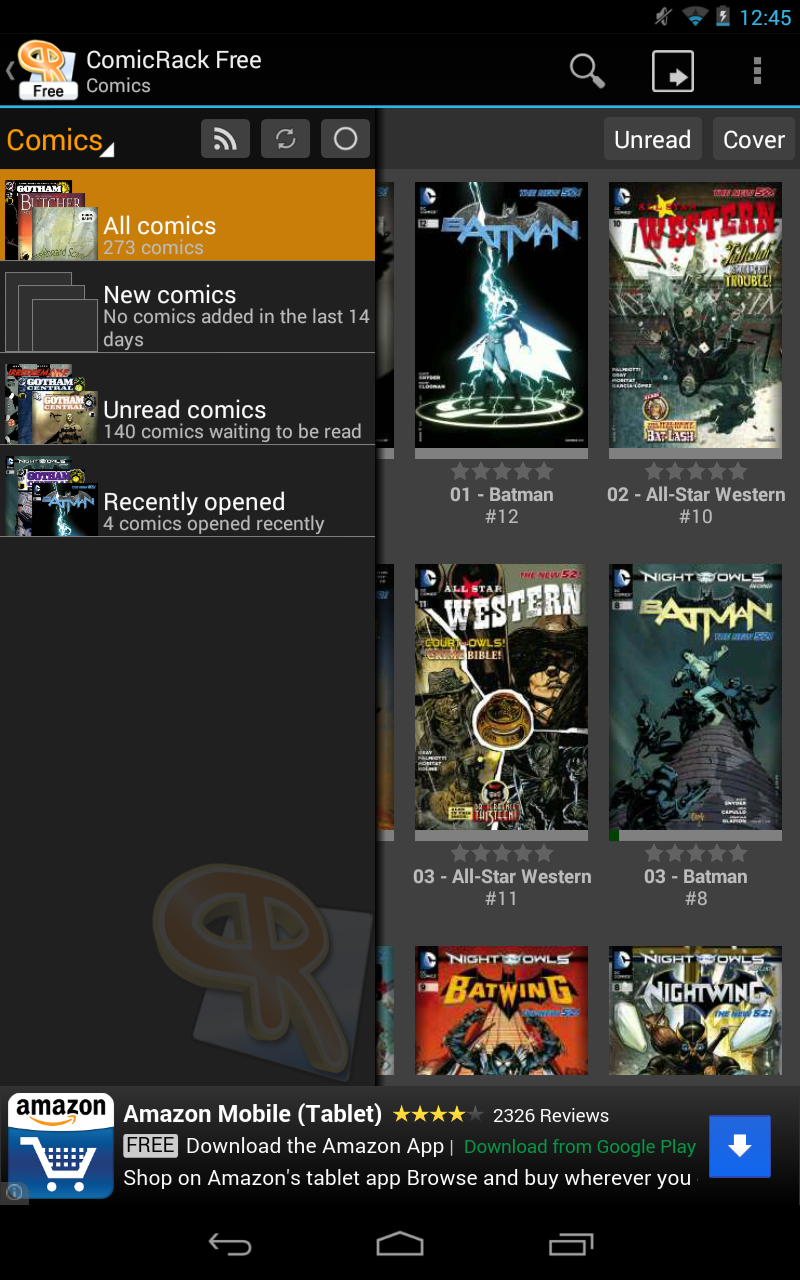
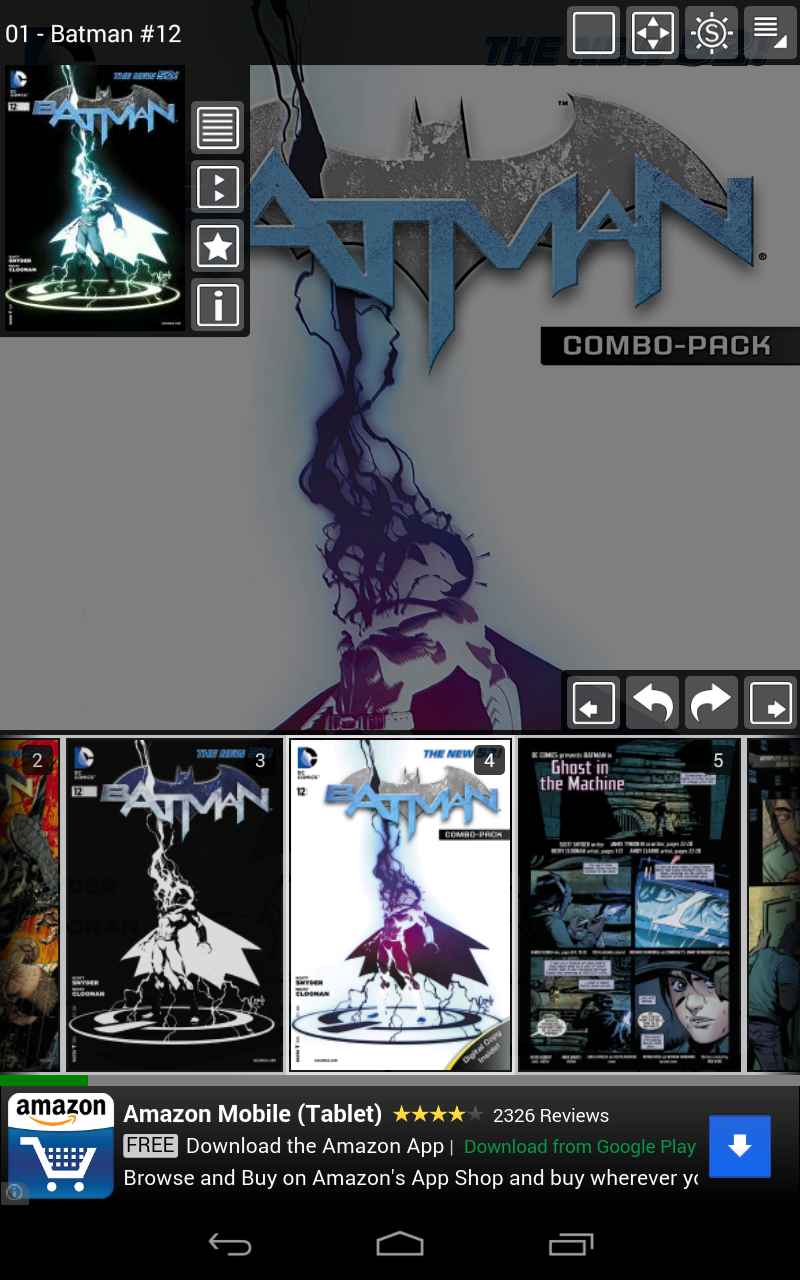
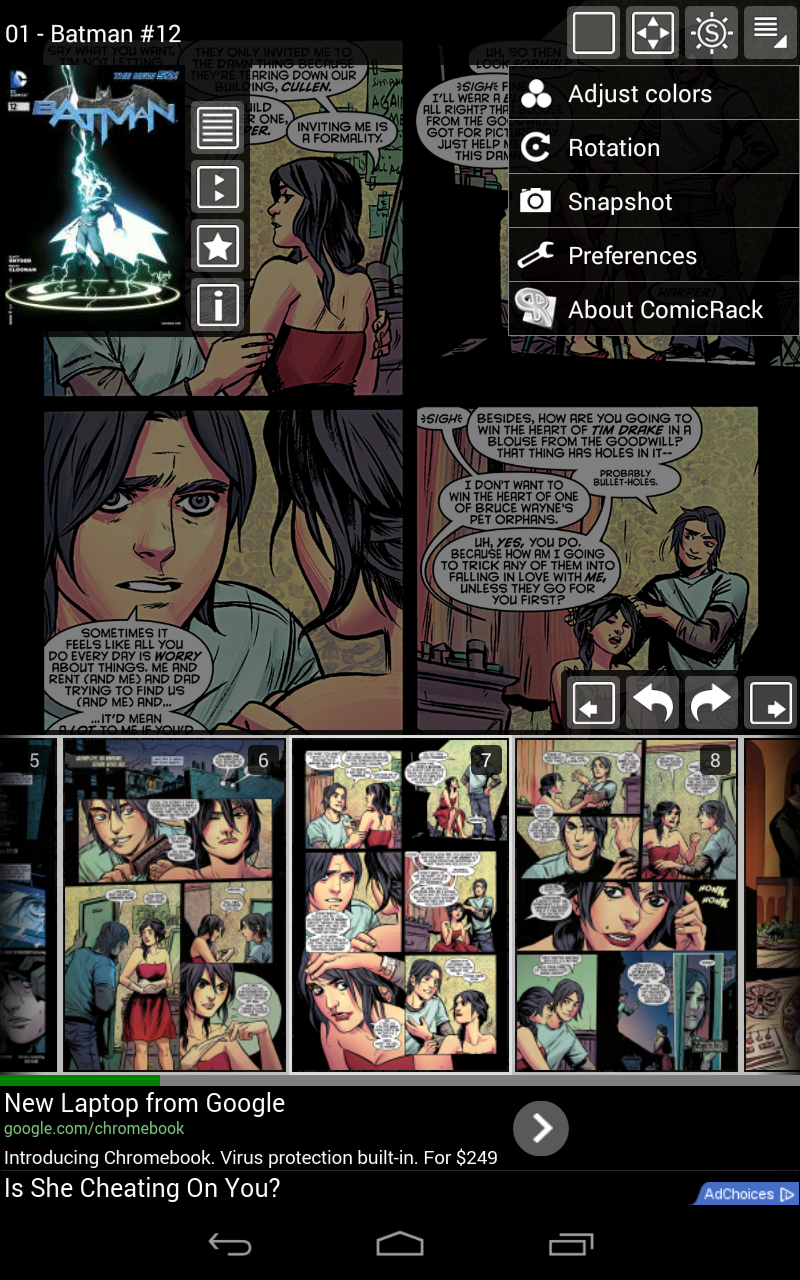
Comic Rack is actually an application I’ve been using for years on my PC and now, it’s become my main .cbr reader on Android. It has features such as color corrections, a very comprehensive library management system, smart page resizing and cropping for smaller devices, and thumbnails of the pages for you to scroll through while in comic if you want to skip around with minimal fuss. You can synchronize with Comic Rack on PC via USB (wirelessly if you buy the premium app) to take comics you may have been reading with you on the go or just to produce smaller file sizes of comics you do want to take with you.
It can switch reading modes and function as a manga reader. It can create a live wallpaper from comics in your library that will actually go to the comic currently displaying on the wallpaper if you double tap. It will tweet your thoughts and screenshots to Twitter, and you can share panels with other services using the share option. The paid version, which is $7.89, eliminates ads and allows wireless sync. And yes, the ad does disappear while you’re reading a comic (so, no view obstruction while reading only when you’re fiddling with options and what not).
Now, I won’t be party to discussion about how to obtain .cbr files. Yes, there are many ways both legally and illegally to do so. However you go about getting your files is of no concern to me. Chaotic neutral always. That was long-winded. I’m not even sorry. [Download: Google Play]
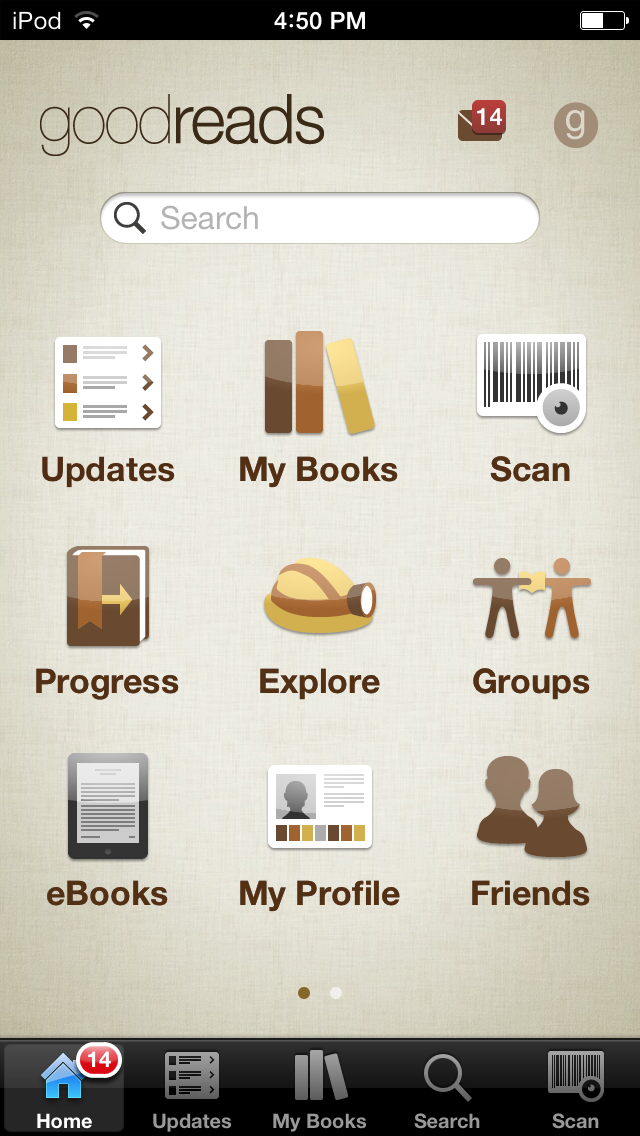
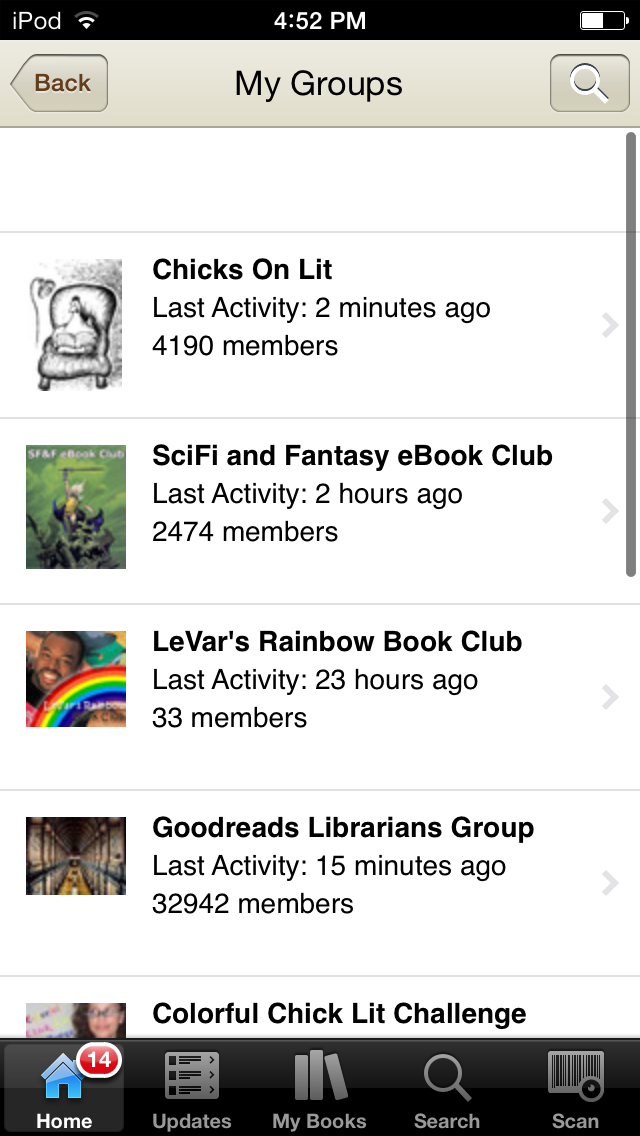
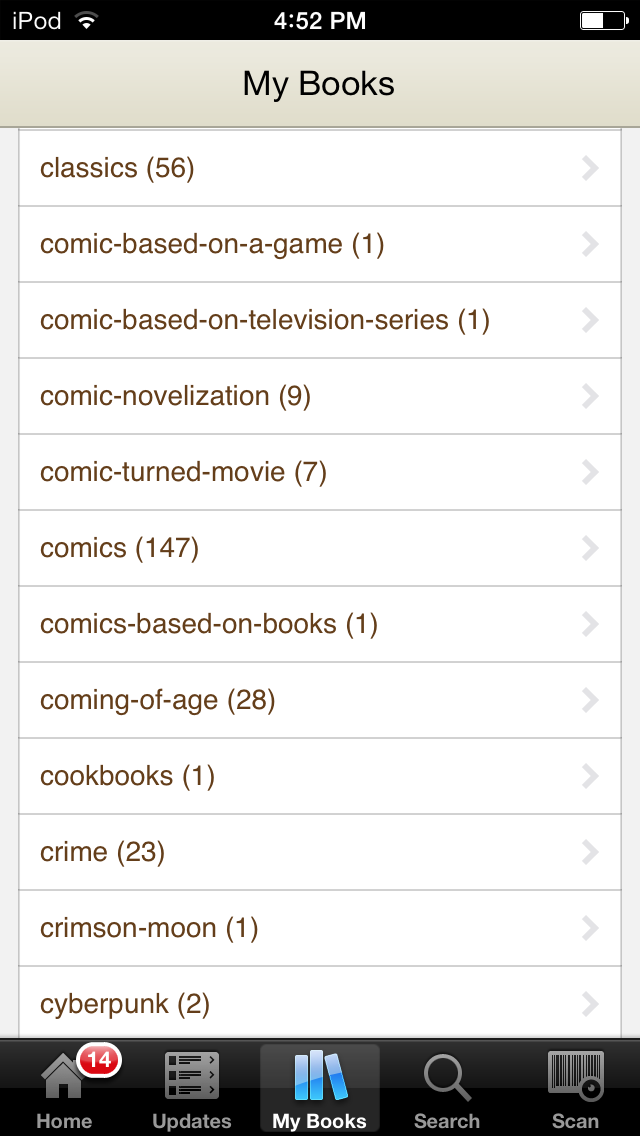
Goodreads (Android/iOS) – If you’re an avid reader, chances are you already know about this social site geared toward readers. However, the site also has its own mobile app that allows users to read and write reviews, update reading progress, and search books, groups, and users. You can interact with other users and your groups on the app, read author blogs, and use the barcode scanner to do a quick book look up on the site to get more information about it. It also offers the ability to read books you may have bought directly on the site in the app itself.I mainly use the app to scroll through my friends’ updates and update my own status, but when I’m away from my PC with just my devices, it does a pretty fair job in allowing me to manage my account. There aren’t too many options that I can’t access with the mobile app, and it’s one of the first apps that I always download on my devices.
[Download: iTunes | Google Play]
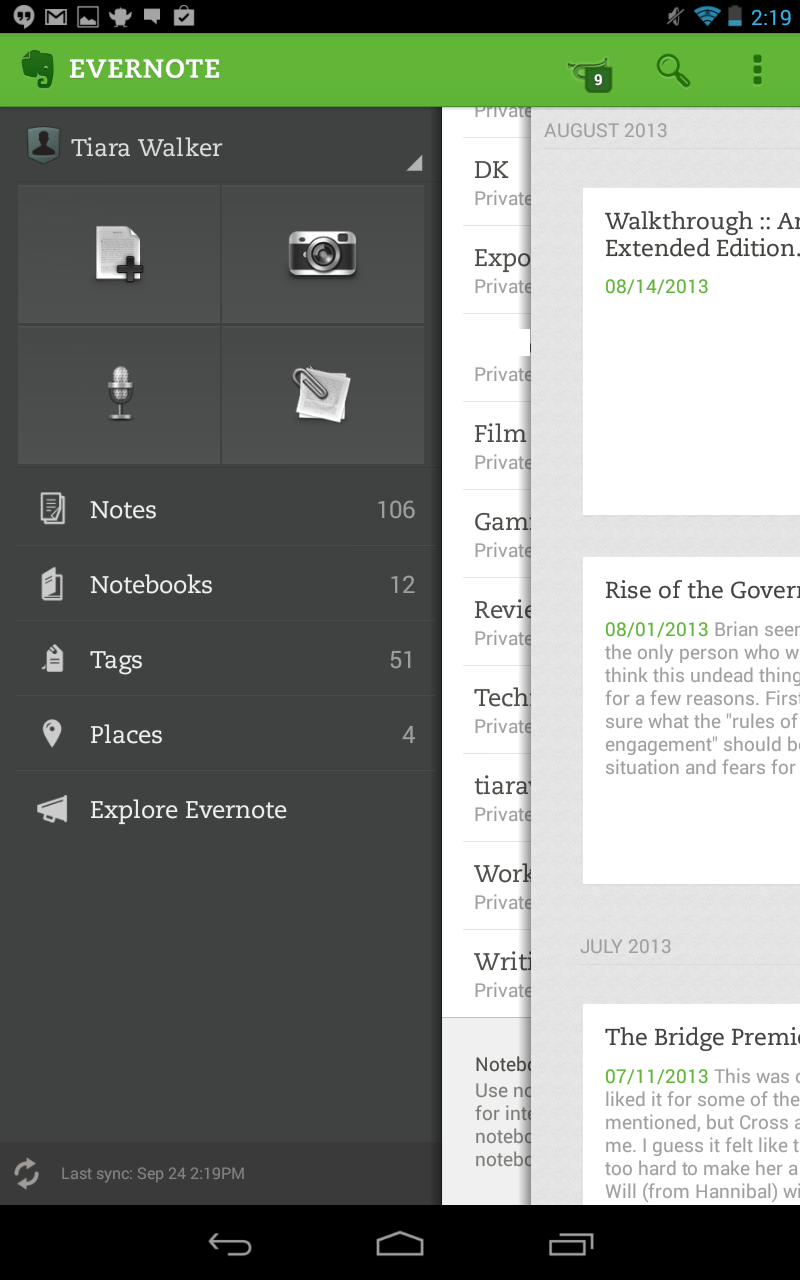
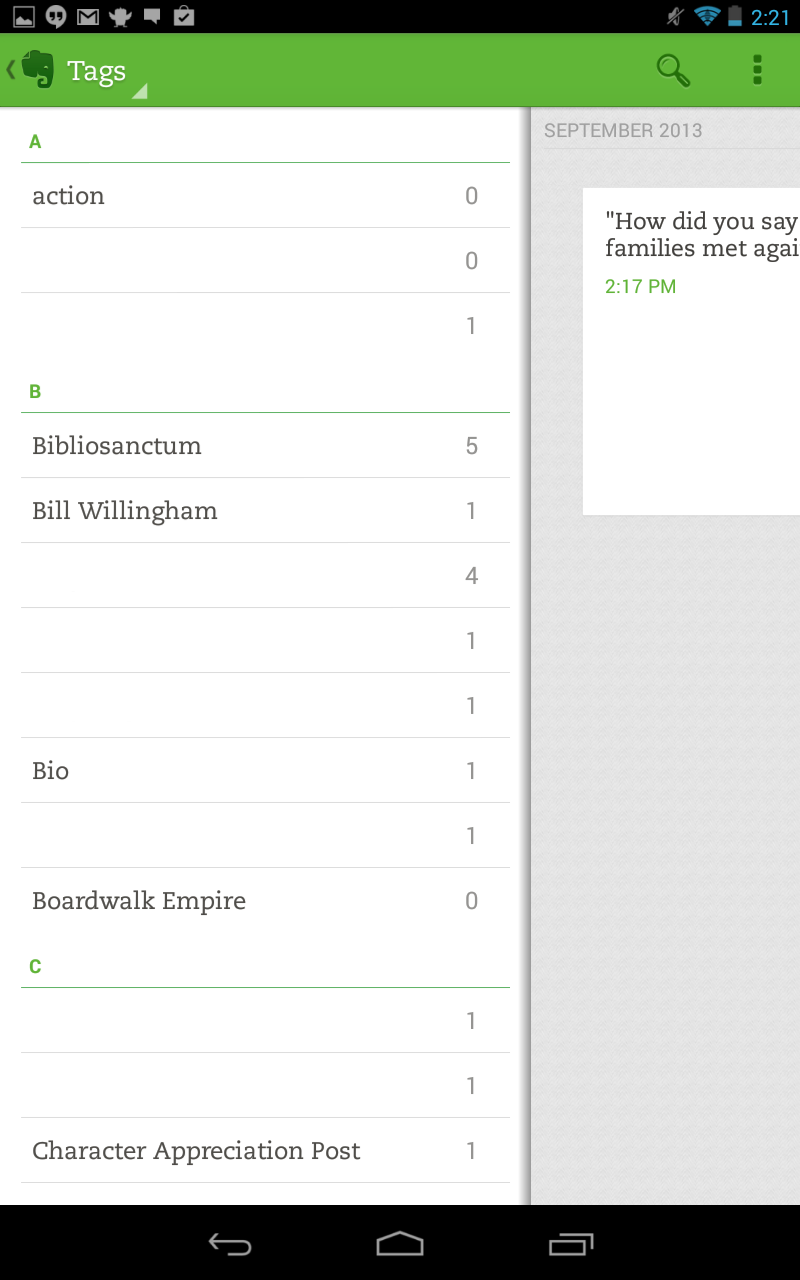
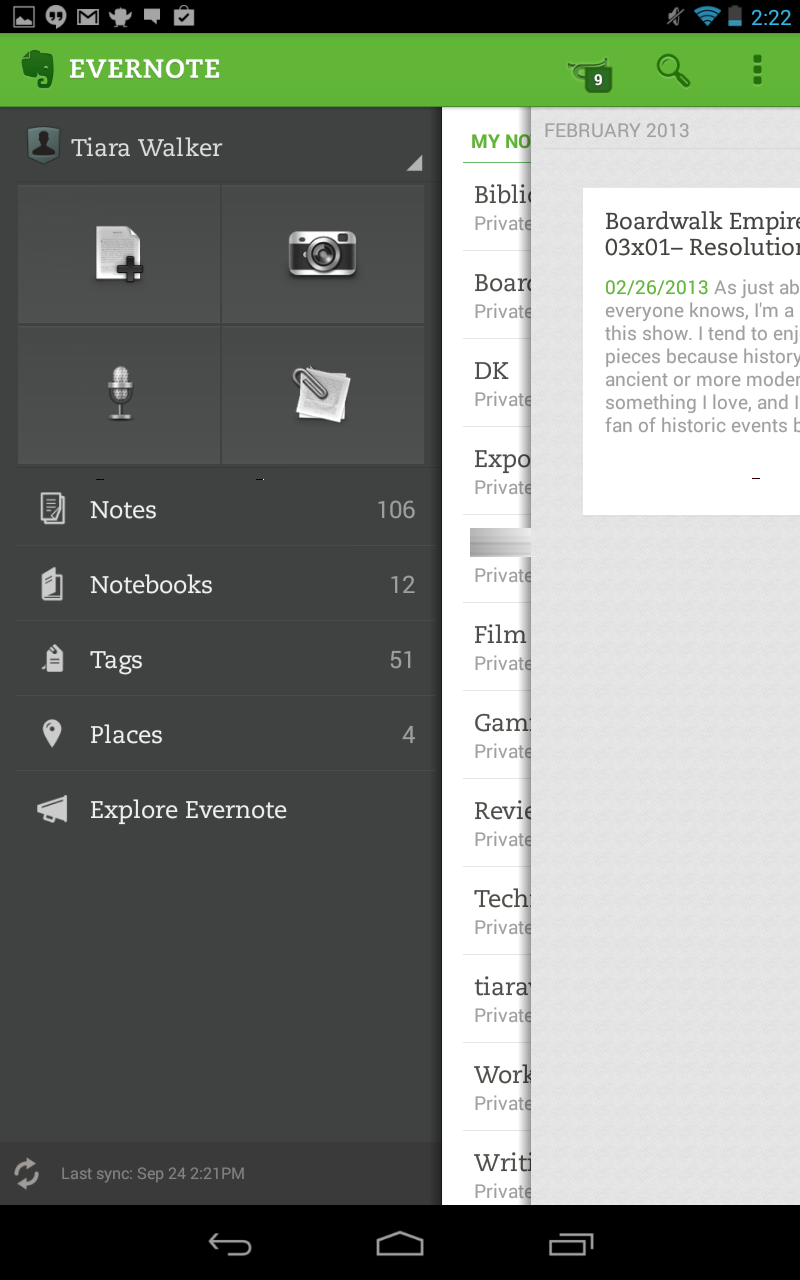
Evernote (Android/iOS) – I use Evernote for many things, but the reason why I’ve listed it here is because I write most of my reviews in Evernote on my devices. Any notes I take or quotes I copy usually go into the application as well. The notes sync across all devices and PCs for easy access. While the app has tons of great features, I’ll stick to mentioning the ones that I find most helpful in regards to this site. (You can read a more comprehensive list of features on the download pages.)
Evernote allows me to create notebooks and tags which I use to keep up with reviews and other things I write for the site. I can save tweets to the app which is helpful because I might tweet random thoughts while reading that I want to expand on in reviews. It can snap pictures of books to remember while I’m out and about and record voice memos when I can’t type up things at that moment. Since I’m a premium user, I can choose notebooks to save offline to continue my work. At first, I didn’t think would use Evernote for much outside of work, but now, I use it for everything.
[Download: iTunes | Google Play]
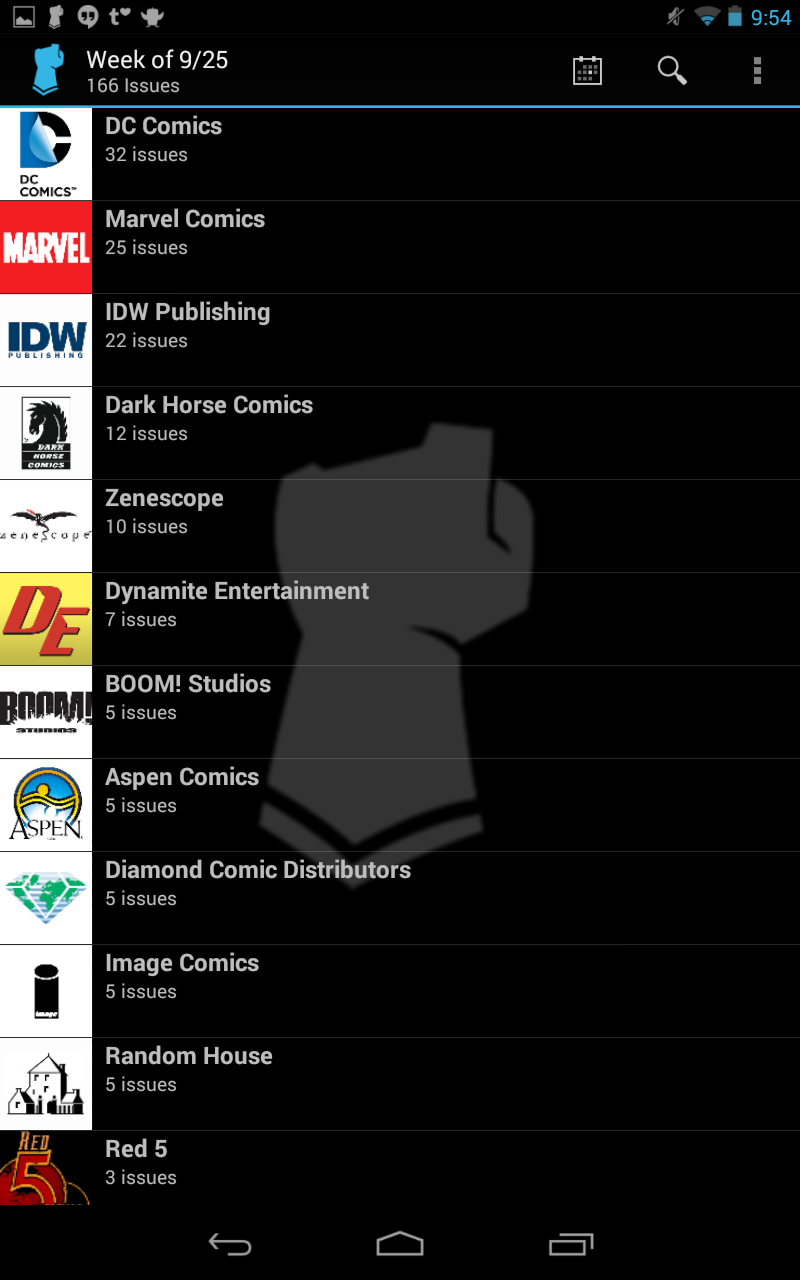
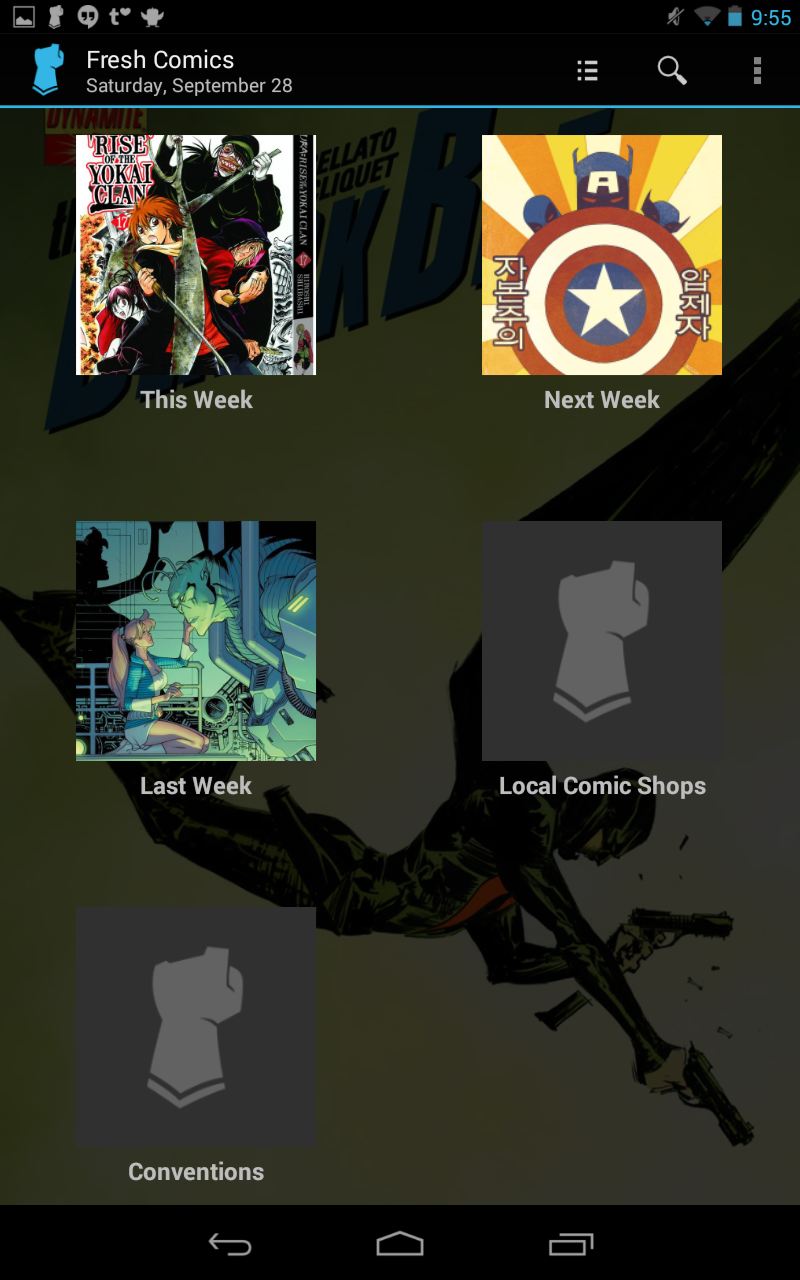
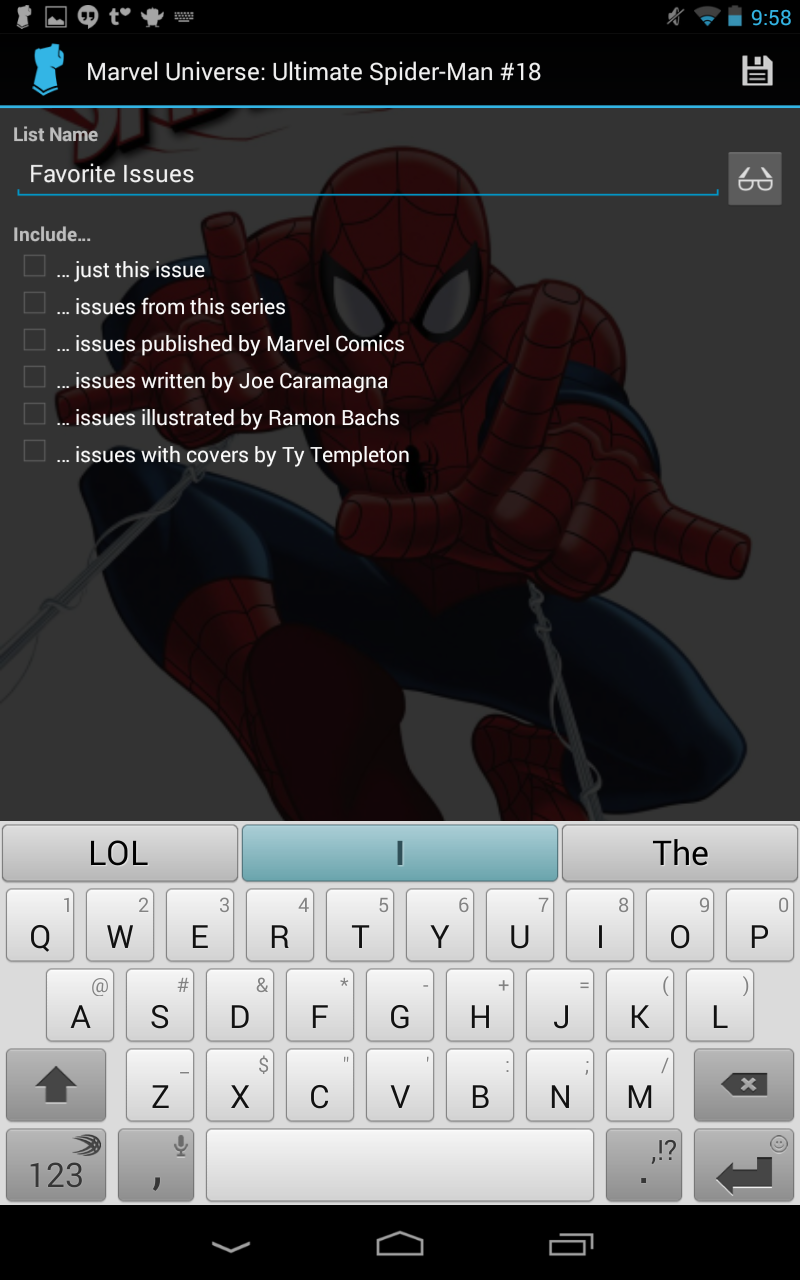
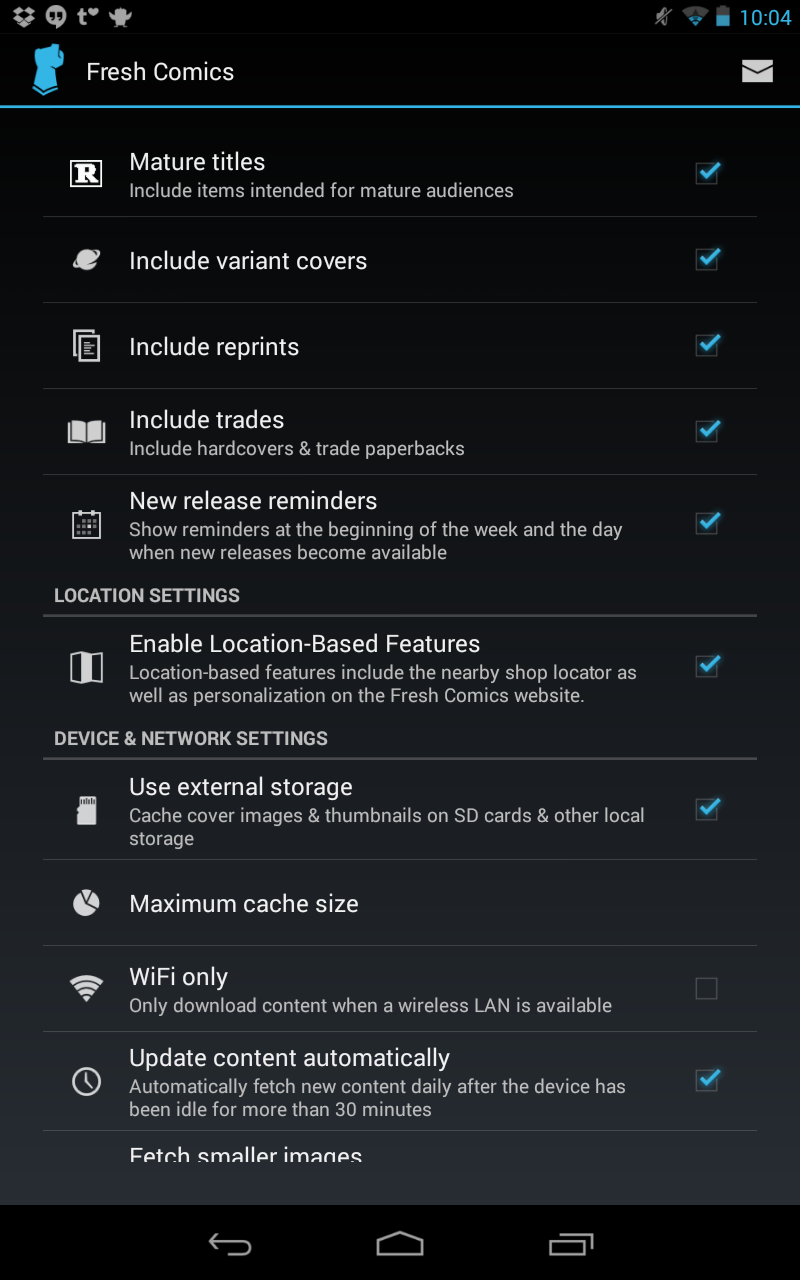
Fresh Comics (Android/iOS) – This is a great app for keeping track of upcoming and past issues of comics that I want to buy. The app also gives a little synopsis on issues you click. They have options that allow users to track specific writers, artists, and comics series. You can create lists, such as shopping lists and favorites lists, in the app. It’ll even show you local comic stories and the location of nearby comic conventions. I mainly use it for a list like function of comics that I have and want to buy as well as using to find more comics by a specific writer or artist. It’s a handy app for the comics lover.
[Download: iTunes | Google Play]
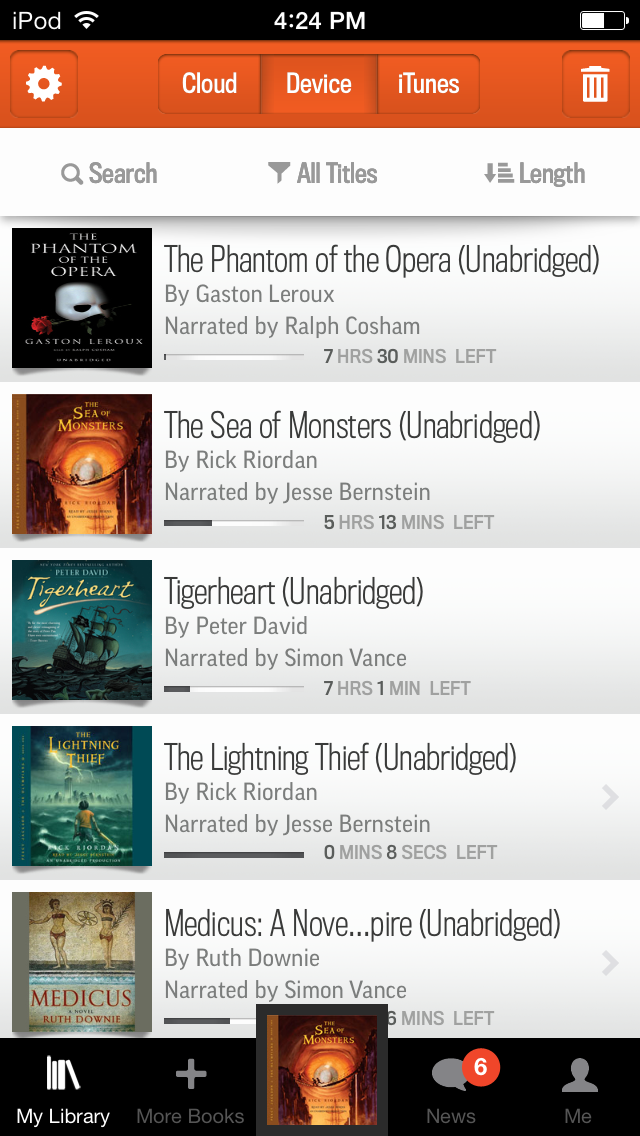
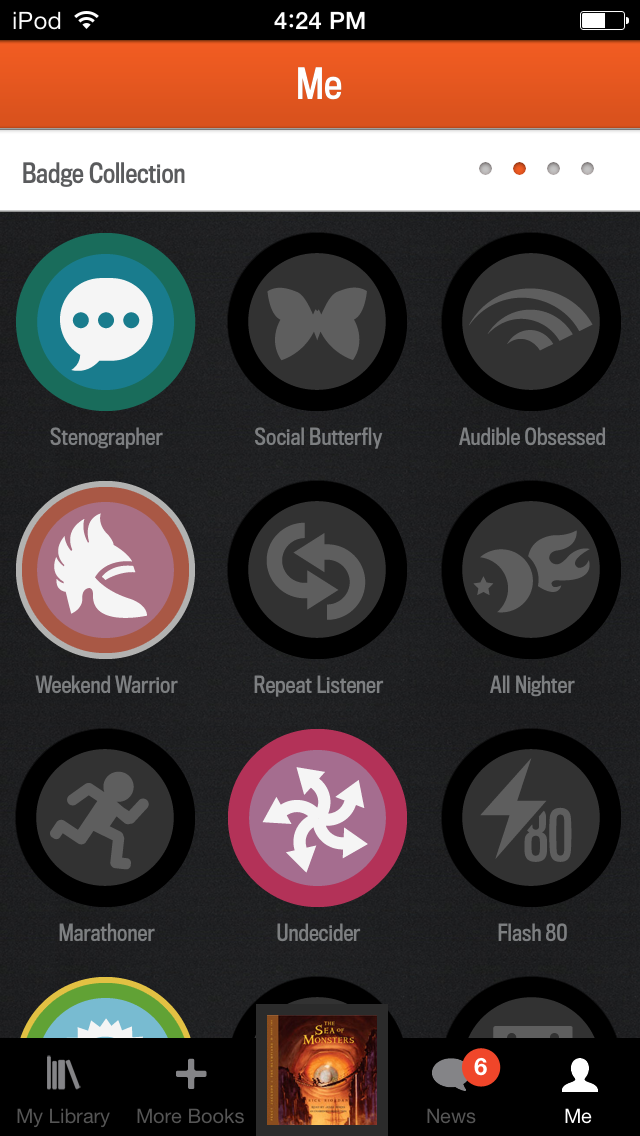
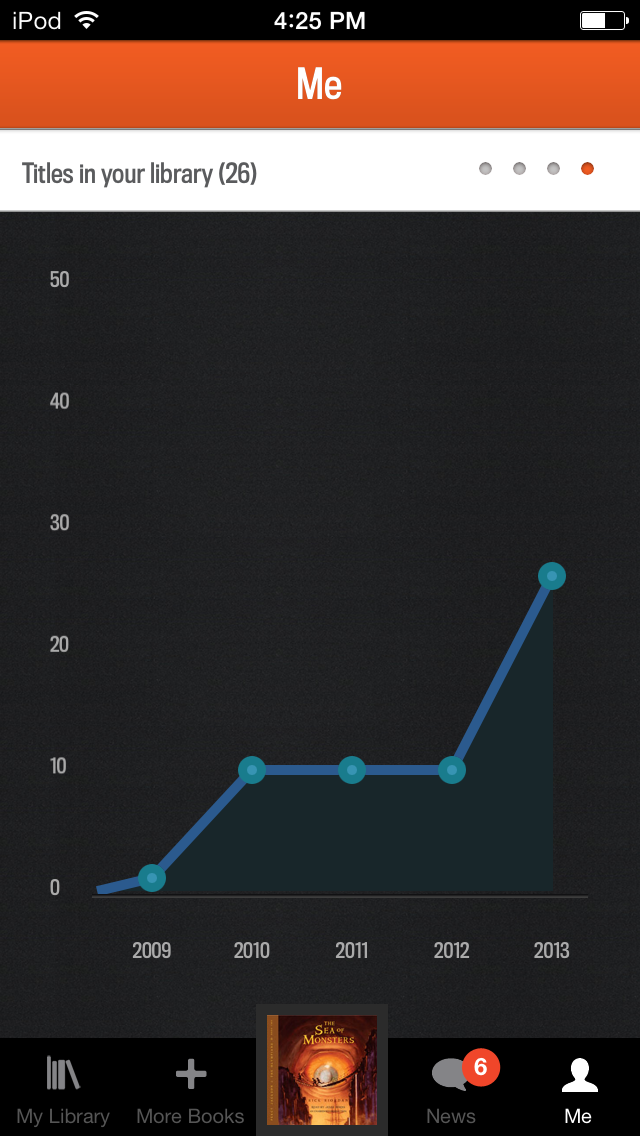
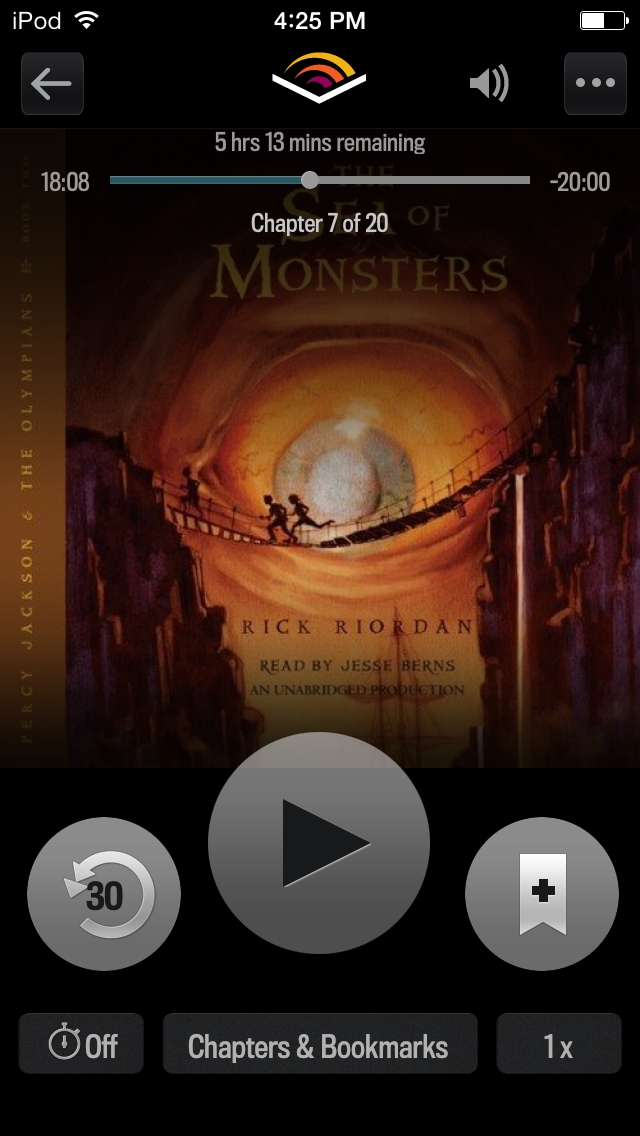
Audible (Android/iOS) – I have never been much of an avid audiobook reader. In earlier years when I tried, I get so annoyed that the narrators would talk so much slower than I could read. There’d been a handful of audiobooks that I really appreciated and a few I had to get through for media type classes I had when I was younger. I’ve had an Audible account for a few years and have listened to books on it here and there. Usually, I’d start a great book and then finish it by buying the ebook version, though. Whispersync, which syncs up your audiobook and ebook, is made for people like me, and I love it.Admittedly, it hasn’t been until recently that I’ve started to use the app frequently (and usually, I use on my iPod and Android phone). Since I’m busier now days, audiobooks come in handy when I can’t sit down and read a book such as when I’m cleaning. I’ve also come to
appreciate certain narrators’ voices and have optioned to listen to them read rather than read the book. Biggest bonus, though? Audibooks are great for my kids! We listen to audiobooks on the way to school, after school during down time, and on roadtrips. They love it. We’re currently listening to Rick Riordan’s
Percy Jackson series. The kids are having so much fun with it. They act out the parts as they’re listening, and we discuss it. It’s worth it for that alone.
[Download: iTunes | Google Play]
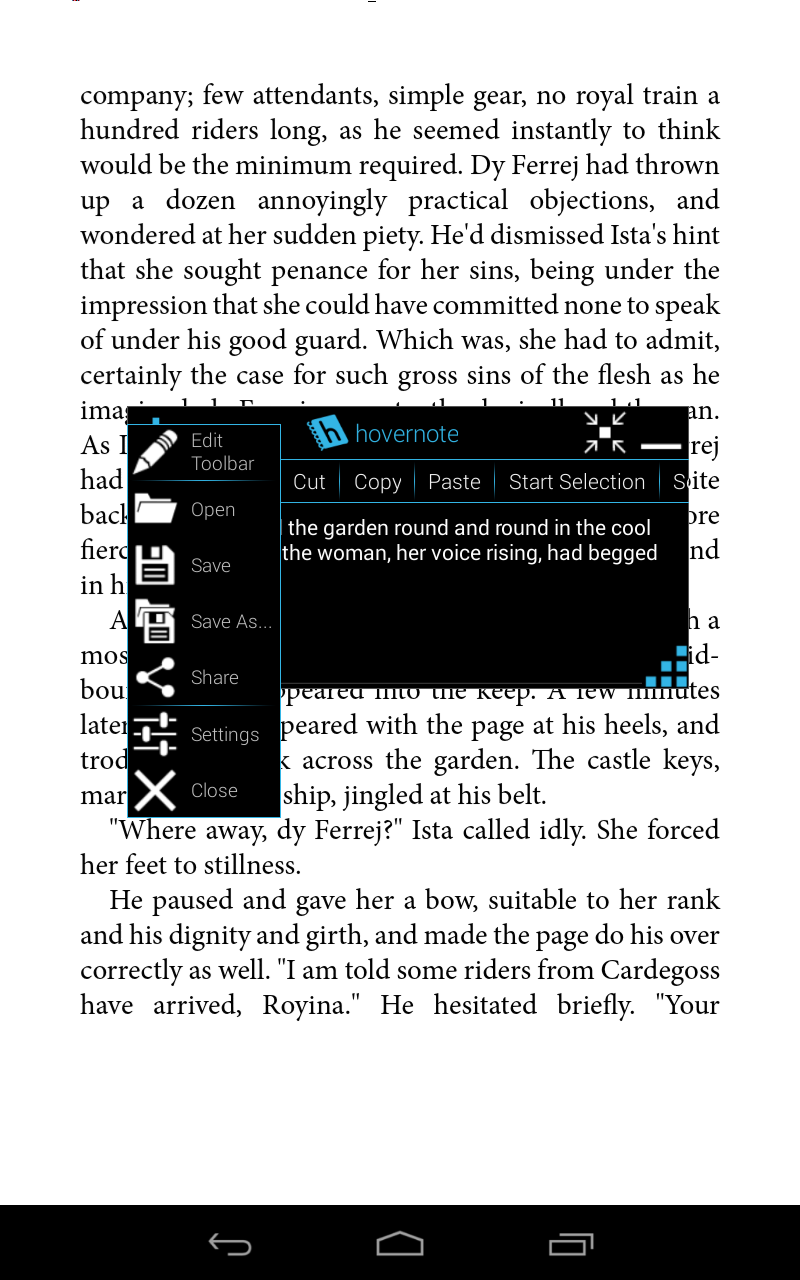
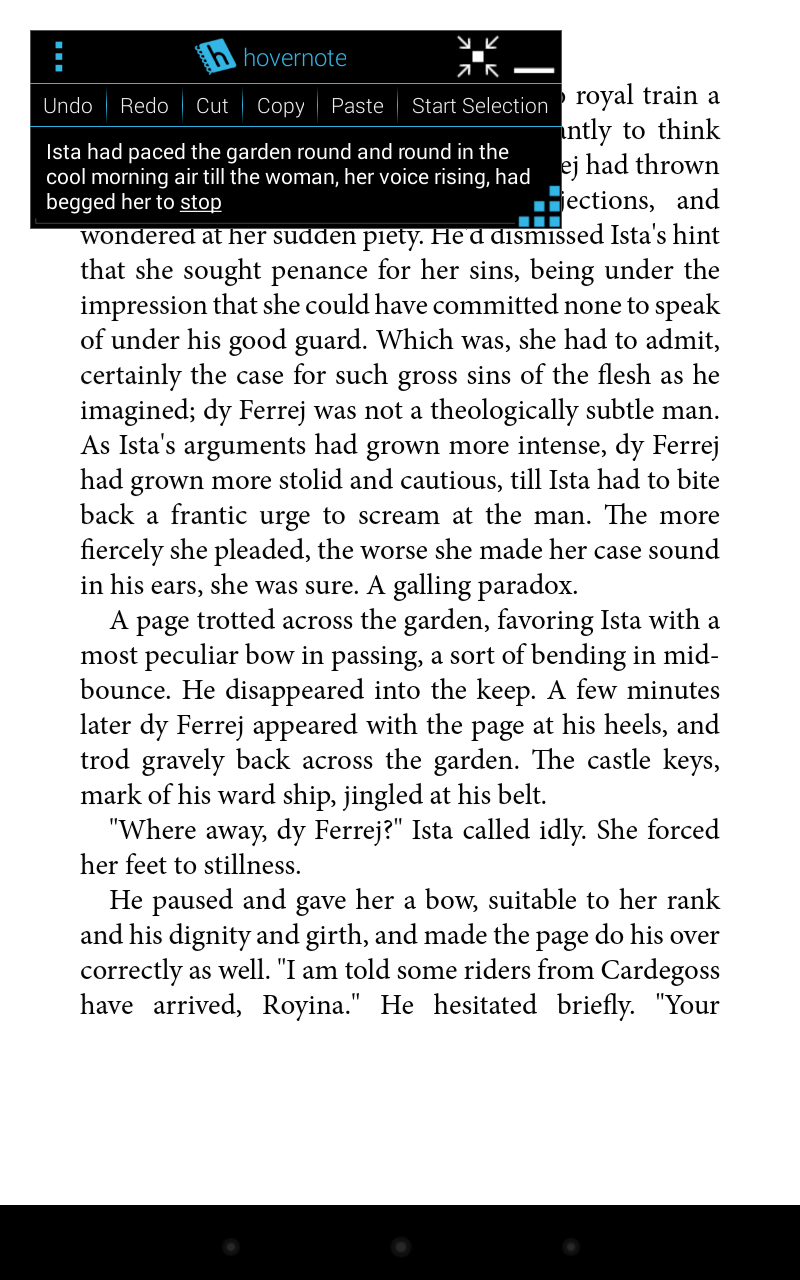
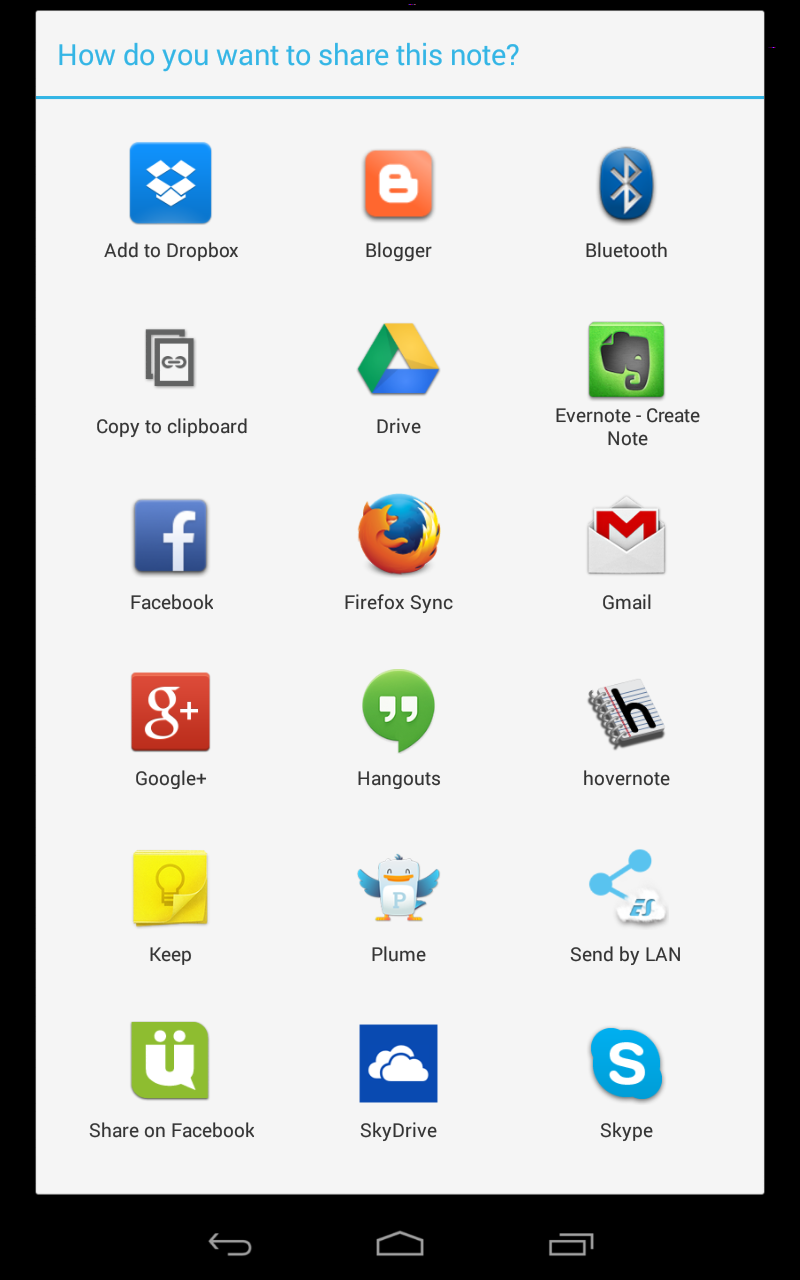
Hovernote (Android) – When I’m reading on my Nexus 7, I take tons of notes about what I’m reading from random thoughts to jotting down memorable quotes I want to keep. I can take notes in my reading apps, but the notes I make, especially something I think I’ll use in a review, I usually want to save somewhere like Evernote. I can’t have Evernote and my reading app open at the same time, and the switching back and forth can be a bit tedious. That’s where Hovernote comes in handy.Hovernote hovers (no pun intended) over whatever I’m currently using. It allows me to type and/or copy and paste notes into it. It’s resizeable and easy to move around. I can save my notes in the app or have it to export my notes to other apps like Evernote, Dropbox, Gmail, Twitter, etc.
[Download: Google Play]
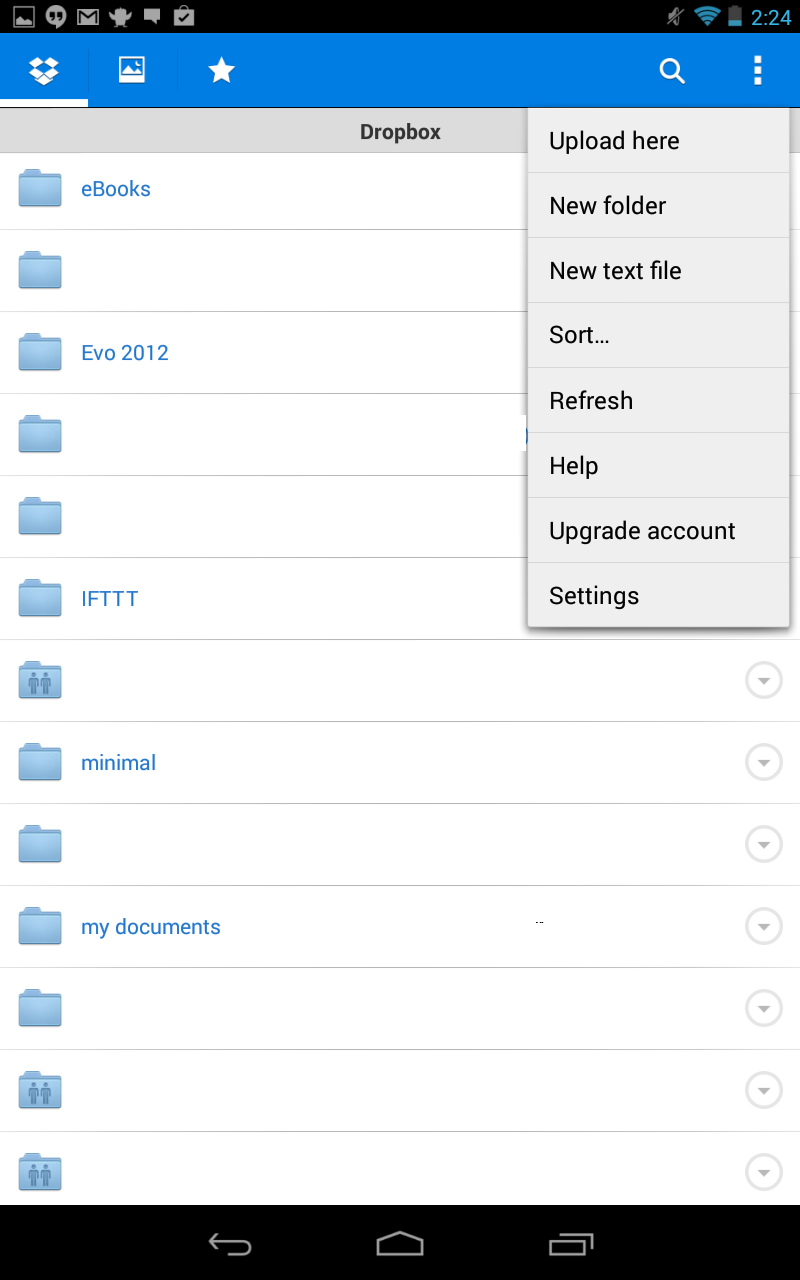
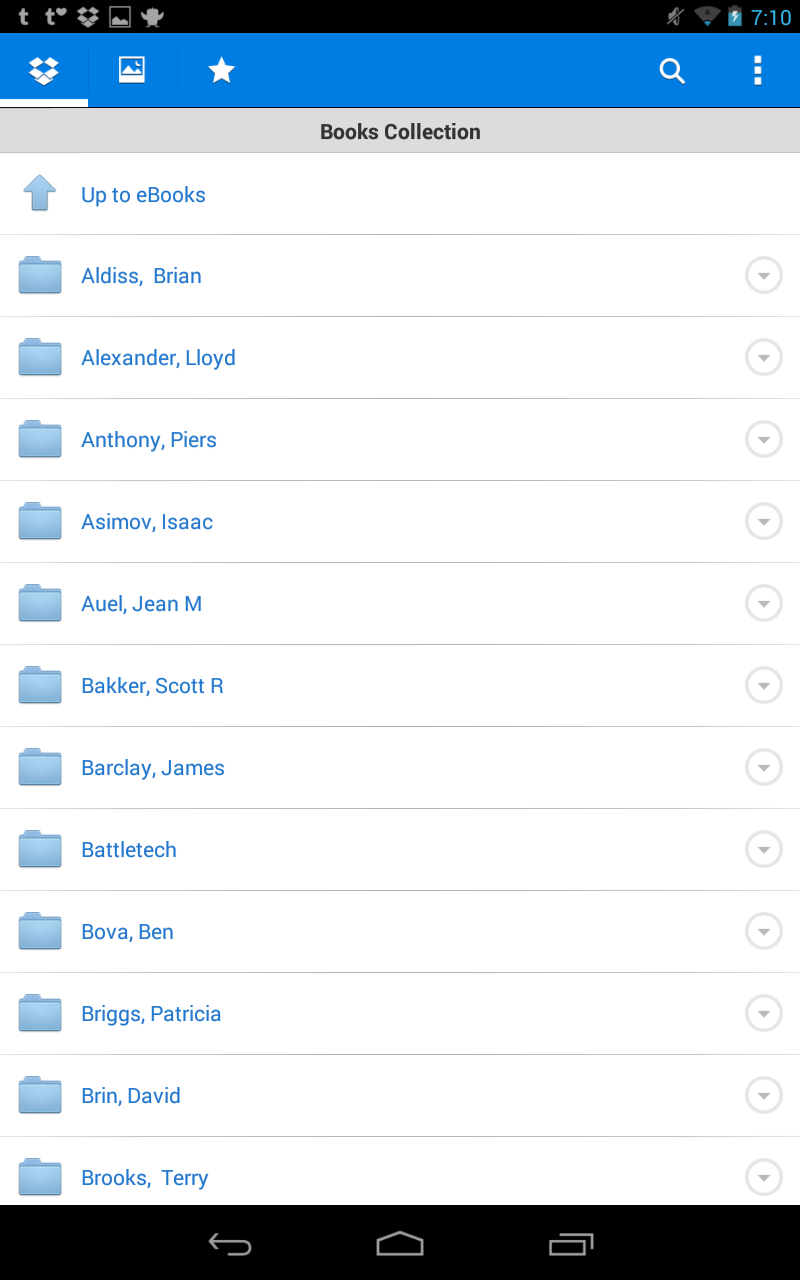
Dropbox (Android/iOS) – I use many cloud storage options, Dropbox is what I mainly use. It works across all my devices and on my PCs. As I mentioned, I have a ton of .epubs files. Instead of loading all of them on my devices, which would cause quite a clutter, I upload them to Dropbox and then download the ones I want to read to my devices. When I’m done, I remove them. If I ever want to add them again, I just snag them from Dropbox again. It’s as simple as that. No muss, no fuss. [Download: iTunes | Google Play]
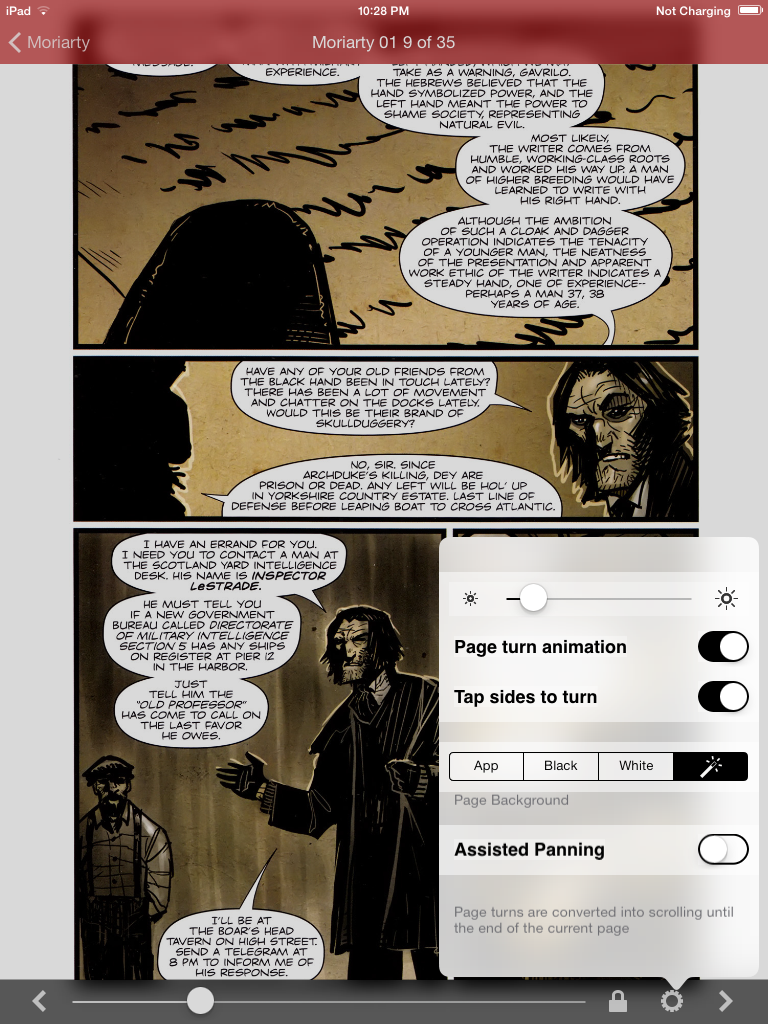
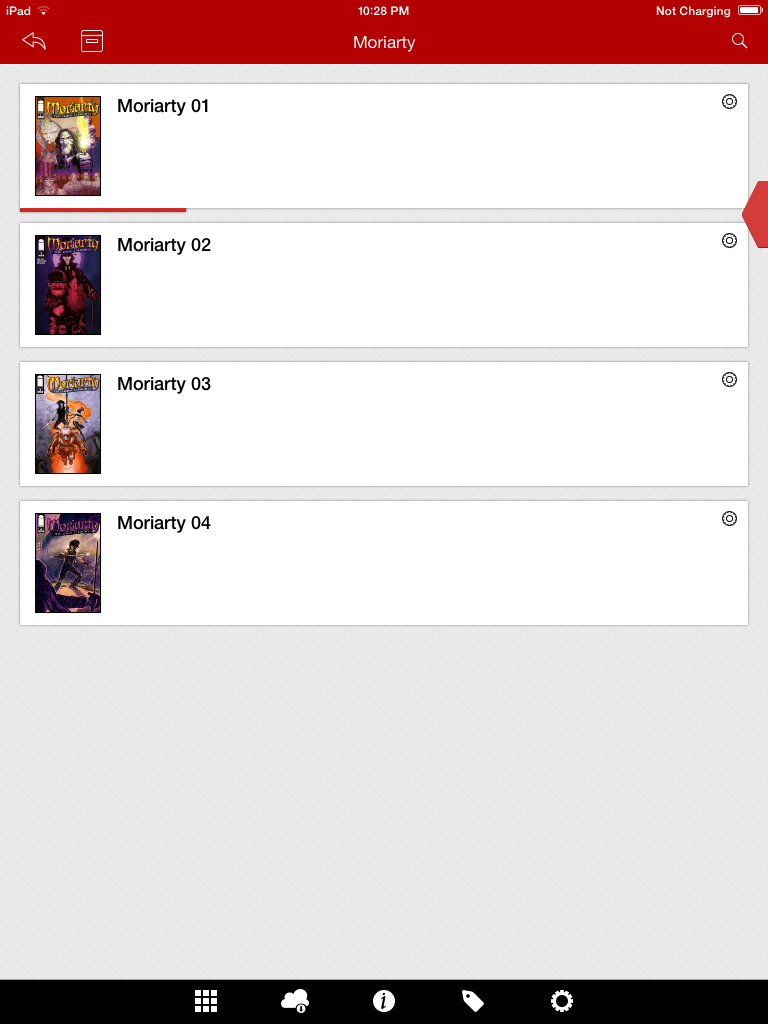
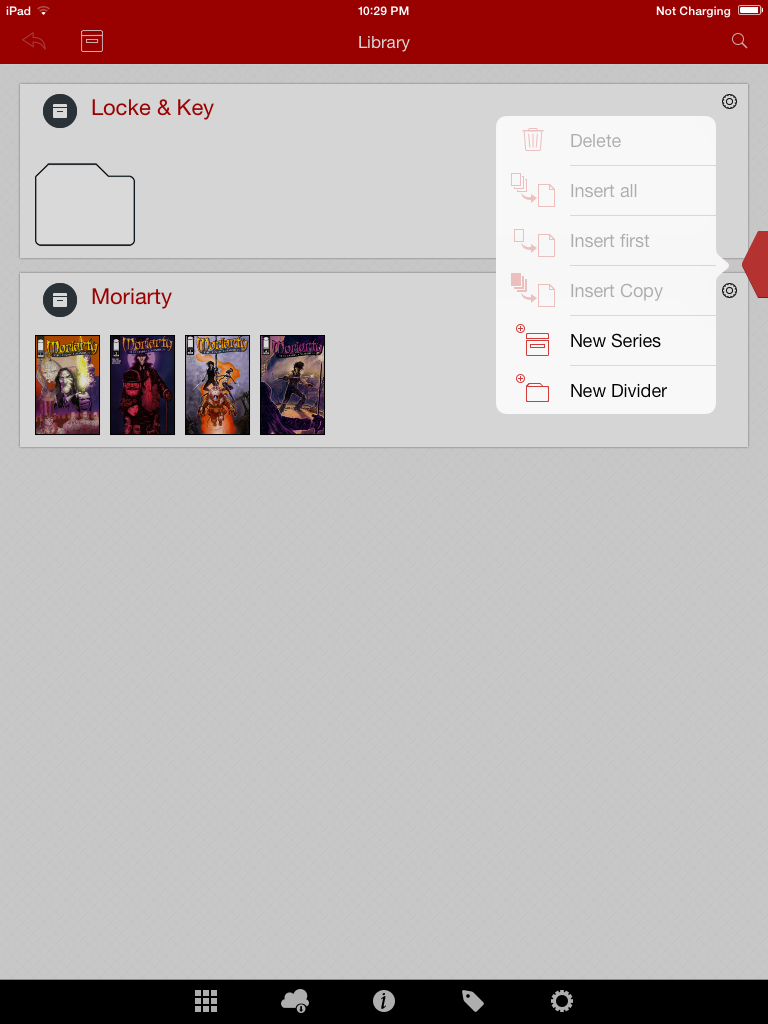
Comic Zeal (iOS) – Comic Zeal is my iOS answer to Comic Rack. It features many of the same options such as grouping the same titles together, allowing you to automatically continue on to the next comic. You can load comics wirelessly, by usb, or by downloading from Dropbox. Other storage systems may work, but don’t quote me on that. Comic Zeal does library management a little better than Comic Rack by allowing you to group comics together in different categories/read lists–such as you might want to group all the comics that feature one character together for reading and you may want to create another category/read list that groups all the comics of a crossover arc together for easy reading. It also has a tagging system, which is very useful.I think this is the only app on my list that doesn’t have a “free” version. To use this app, you’re going to have to cough up $4.99.
[Download: iTunes]
That’s it. Have any reading/reading-related apps you think I should check out? Let me know.






 The BiblioSanctum